How to Extract a URL from a QR Code (5 Easy Methods in 2026)
📖 Table of Contents
QR codes are everywhere — on restaurant menus, product packaging, billboards, and business cards. But what if you have a QR code image saved on your computer and need to extract the URL from it? You can't exactly point your phone at your own screen.
In this guide, we'll show you 5 easy methods to extract a URL from any QR code, whether it's a screenshot, a photo, or a downloaded image. We'll also cover how to verify if the extracted URL is safe before clicking it.
Method 1: Use an Online QR Code to URL Scanner (Fastest)
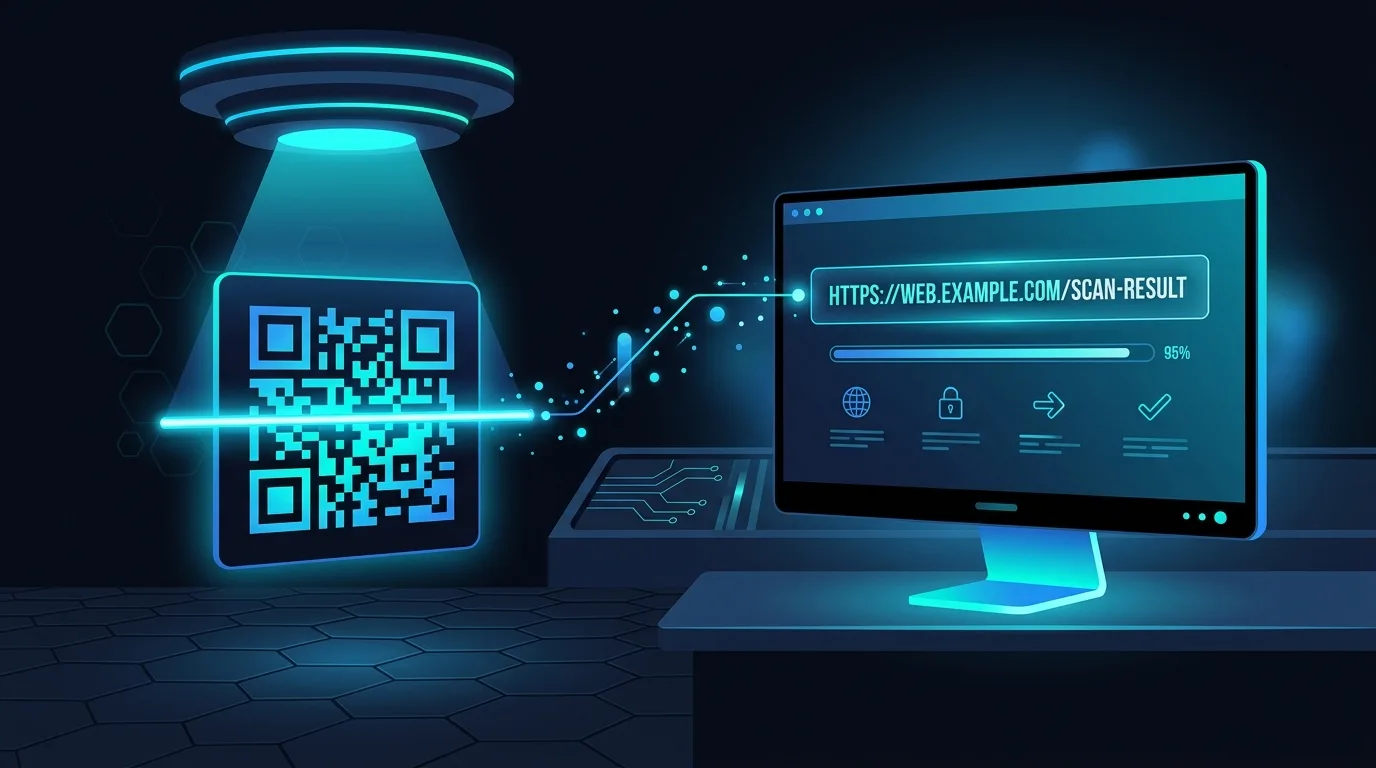
The quickest way to extract a link from a QR code image is using an online QR code link extractor like imagesurl.com. No software installation required.
How it works:
- Go to imagesurl.com
- Upload your QR code image (drag & drop, paste, or click to browse)
- The URL is extracted and displayed instantly
- Click to copy, open, or run an AI safety check
💡 Why this method is best
Online scanners work with any image format (PNG, JPG, SVG, WebP), require no app installation, and process the QR code directly in your browser. imagesurl.com also provides AI-powered safety analysis to check if the URL is safe before you visit it.
Method 2: Use Your Phone Camera
If the QR code is on a physical object (poster, product, etc.), your phone's built-in camera can scan it:
- iPhone: Open the Camera app, point it at the QR code. A notification with the URL appears at the top.
- Android: Open the Camera or Google Lens. Most modern Android phones detect QR codes automatically.
Limitation: This method doesn't work well for QR codes saved as images on your device. You'd need a second device to display the image, which is inconvenient. That's why online scanners are better for digital QR codes.
Method 3: Google Lens
Google Lens can scan QR codes from images stored on your device:
- Open Google Photos on your phone
- Open the image containing the QR code
- Tap the Lens icon (or “Search with Lens”)
- Google Lens will detect and display the URL
Desktop option: You can also use Google Lens on the web by uploading an image, but it's slower than dedicated QR code scanners.
Method 4: Browser Extensions
Several browser extensions can scan QR codes directly from web pages:
- QR Code Reader (Chrome): Right-click any QR code image on a webpage and decode it.
- Firefox QR: Similar functionality for Firefox users.
Downside: Extensions add overhead to your browser and may have privacy concerns. An online tool like imagesurl.com achieves the same result without installing anything.
Method 5: Command Line (For Developers)
Developers can use zbarimg (part of the ZBar library) to decode QR codes from the terminal:
zbarimg --raw qrcode.png
This outputs the decoded URL directly. Great for batch processing in scripts, but overkill for casual use.
How to Check if a QR Code URL is Safe
Before visiting any URL extracted from a QR code, consider these safety checks:
- Domain check: Does the URL point to a known, legitimate domain?
- HTTPS: Is the URL using HTTPS encryption?
- URL length: Suspiciously long URLs with random characters may be phishing attempts.
- AI analysis: Use imagesurl.com's AI safety scanner to automatically check the URL against known threat categories.
🛡️ Pro Tip: AI Safety Analysis
imagesurl.com's premium plans include AI-powered URL safety analysis that checks every scanned URL for phishing, malware, and suspicious patterns. It's like having a security expert review every link before you click.
Frequently Asked Questions
Can I extract a URL from a blurry QR code?
It depends on how blurry the image is. QR codes have built-in error correction, so minor blur or damage is usually fine. If the code is too damaged, try a higher-resolution image.
What types of data can QR codes contain besides URLs?
QR codes can contain plain text, email addresses, phone numbers, WiFi credentials, vCard contacts, calendar events, and more. Our scanner detects all types.
Is it safe to scan unknown QR codes?
QR codes themselves are harmless — they're just data. The risk comes from visiting the URL they contain. Always verify the URL before clicking, especially with QR codes from unknown sources.
Can I scan multiple QR codes at once?
Yes! With imagesurl.com's batch scanning feature (available on Pro and higher plans), you can upload up to 50 images at once and extract all URLs simultaneously.
Try It Free Right Now
Extract URLs from any QR code image in seconds. No signup required for your first 5 scans.
🔍 Scan a QR Code Free →Related Articles
- Are QR Codes Safe? How to Detect Malicious QR Codes
Learn about quishing attacks and how AI can protect you from dangerous QR code links.
- QR Code Decoder: The Complete Guide
Technical deep-dive into how QR decoders work, batch processing, and API integration.